← All templates Intake · AI-assisted · works with n8n

Job Listings & AI Screening

A real jobs board, not a static page pretending to be one. Post an opening as a record in Snapi, and it shows up live on your public careers page — pulled straight from your data by a native Snapi webhook, no external automation required. This page walks through the whole thing step by step, with screenshots, so you don't need to already know Snapi to follow along.

Free plan (4 pages) is enough to run this template

How the pieces fit together

Four pages and a board, wired together automatically when you install.

Careers Hubpublic · live table of open jobs
Job Detailpublic · read-only, one job
Applicationpublic · apply page

Behind the scenes: Job Posting is the staff-only page where you actually create and edit openings — that's the data everything else reads from, live, with no separate publishing step.

Install in Snapi Download Template JSON

Step by step

What actually happens, in order — from clicking Install to seeing your first application land on a board.

Install the template

Click Install in Snapi above (or, from inside Snapi, go to Pages and choose this template). You'll see a preview of what's about to be created — 4 pages and 1 board — then confirm. Nothing else to configure; the pages that need to talk to each other are already wired up.

See what got created

Everything lands in one folder on your Pages screen, named after the template, so it doesn't scatter across your workspace: Careers Hub, Job Posting, Job Detail, and Application, plus an Applicants board.
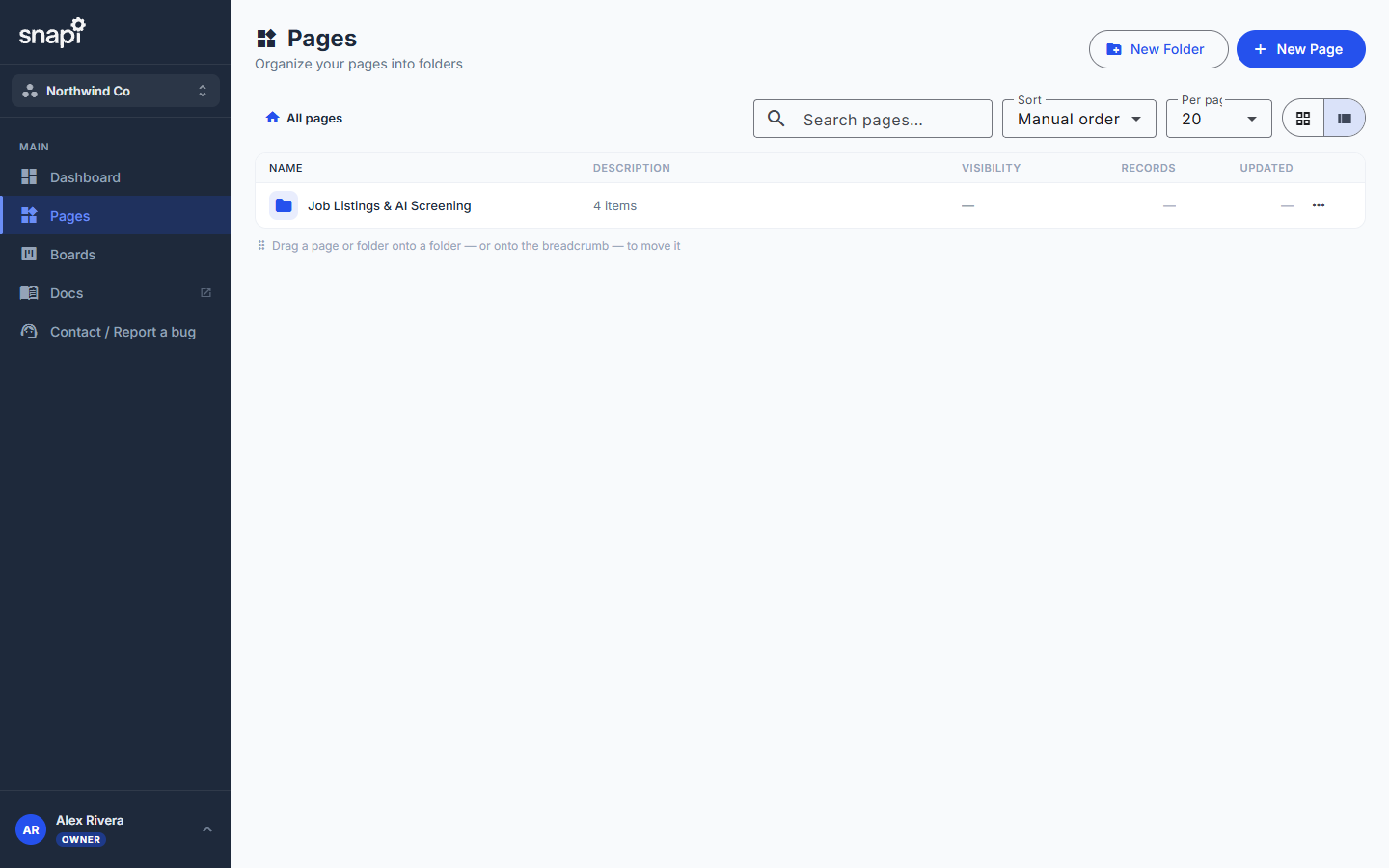
The Pages screen after installing, showing the Job Listings & AI Screening folder with 4 items

Your Pages list right after install — one folder, four pages inside it.

Add your jobs — the "Job Posting" page needs real data

Nothing shows up on the public careers page until you put something in Job Posting. Open it, click New Record, and fill in a title, department, location, and requirements. Set Status to Open.
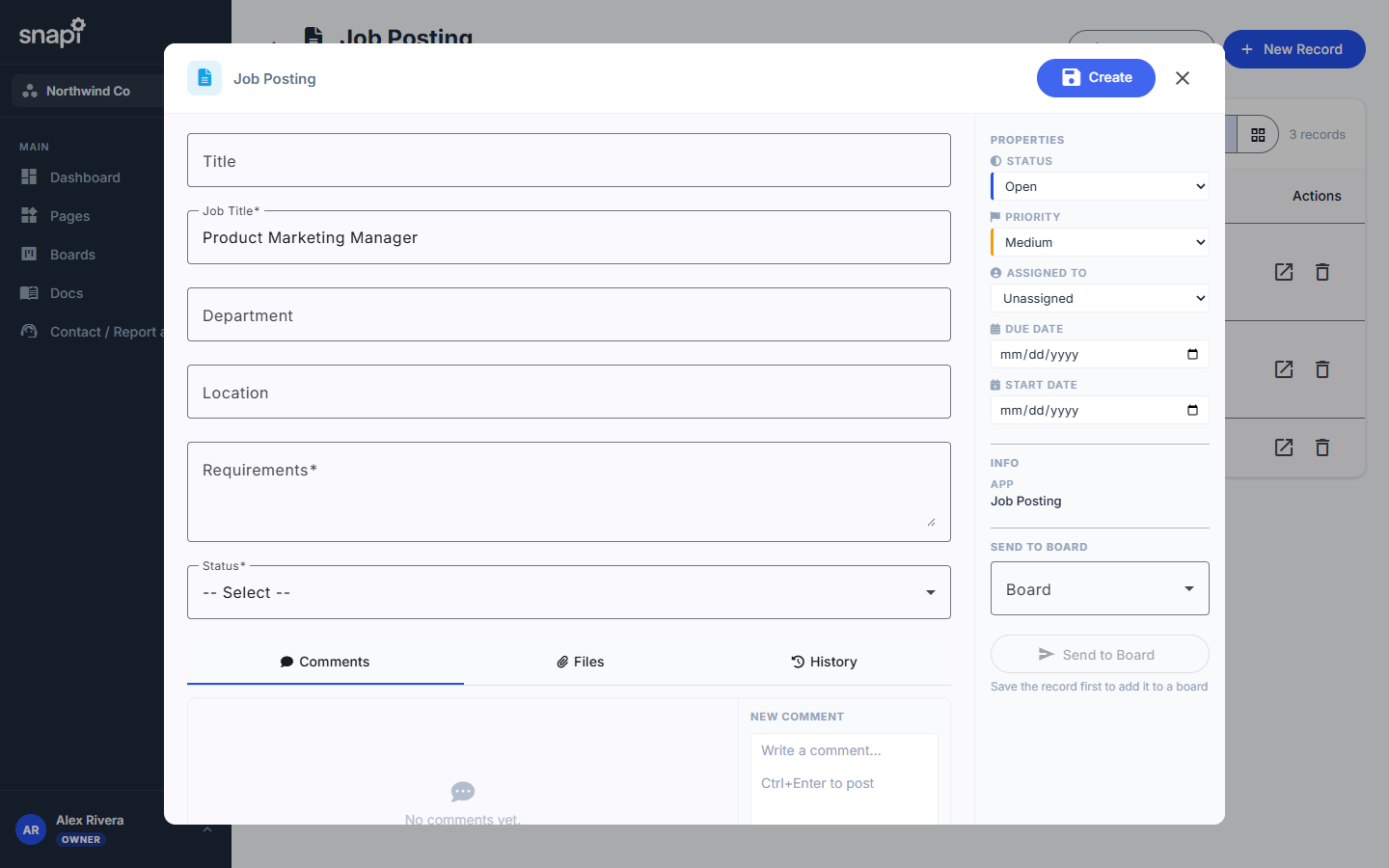
The careers page and the detail page both read this data live — there's no "publish" button and no page to hand-edit. Add a job here, and it's on the public page within seconds. Set Status to Closed later and it drops off the list automatically (the record itself isn't deleted).
The Job Posting form open with Job Title filled in as Product Marketing Manager

Adding an opening on the staff-only Job Posting page. Repeat for each role you're hiring for.

Test it: the public link

Open Careers Hub in the page builder and go to its Public Page tab. Under Public Link you'll find a real, working URL — this is the actual live page, not a preview. Open it in a new tab (or an incognito window, to see it exactly as a stranger would) to confirm your jobs are showing up before you put it anywhere public-facing.

Think of this link as your test URL: it works standing completely alone, with no website or iframe required, so it's the fastest way to check your data is right.
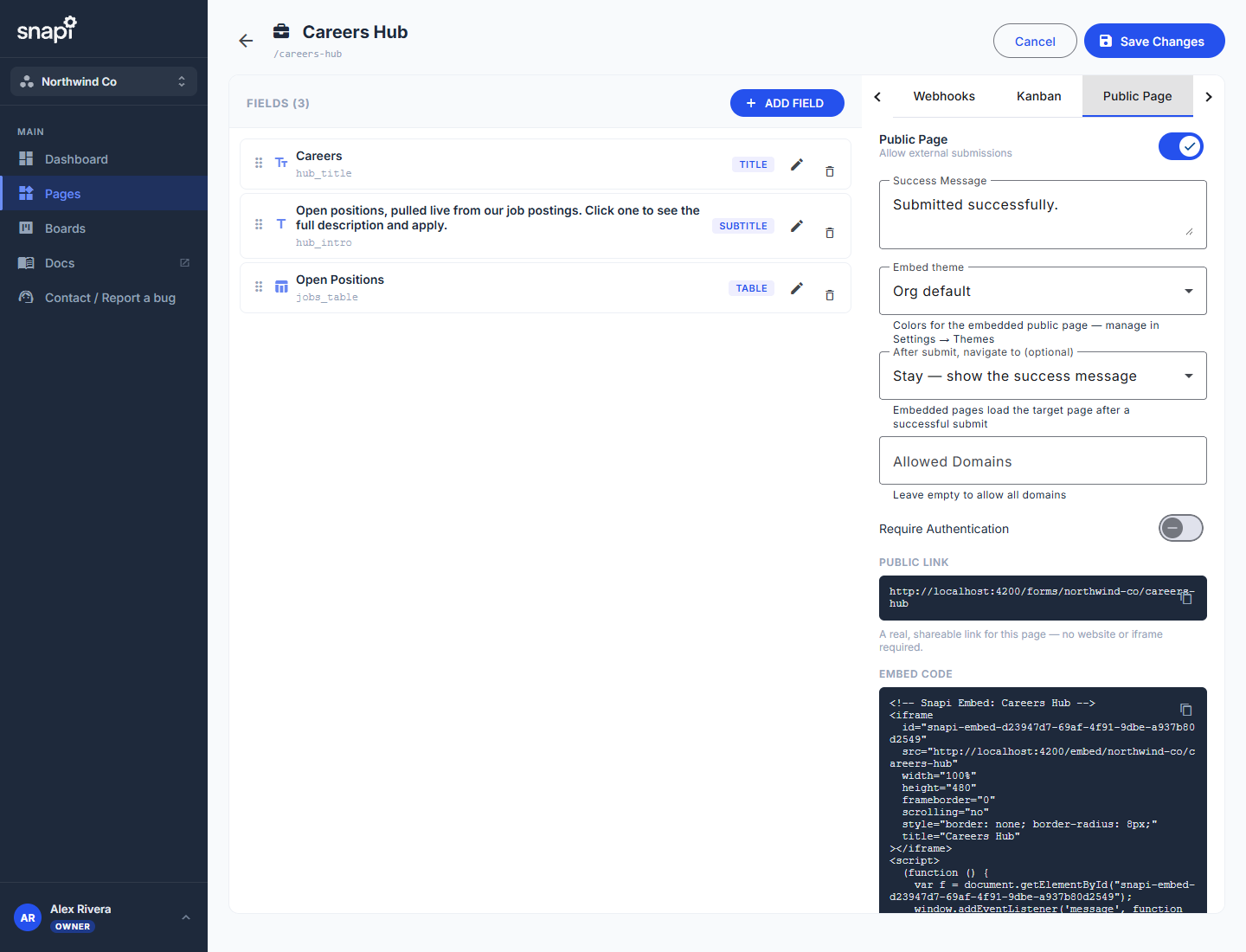
The Public Page tab showing the Public Link field and the Embed Code box below it

The Public Page tab: your test URL (Public Link) and the embed snippet (Embed Code) live right next to each other.

Embed it on your real site

Once you're happy with the test URL, scroll down on that same tab to Embed Code and copy the snippet — it's a plain <iframe> plus a small script that auto-sizes it, ready to paste into your own site's HTML (Webflow, WordPress, a hand-built page, anywhere). No build step, no SDK to install.

What an applicant sees

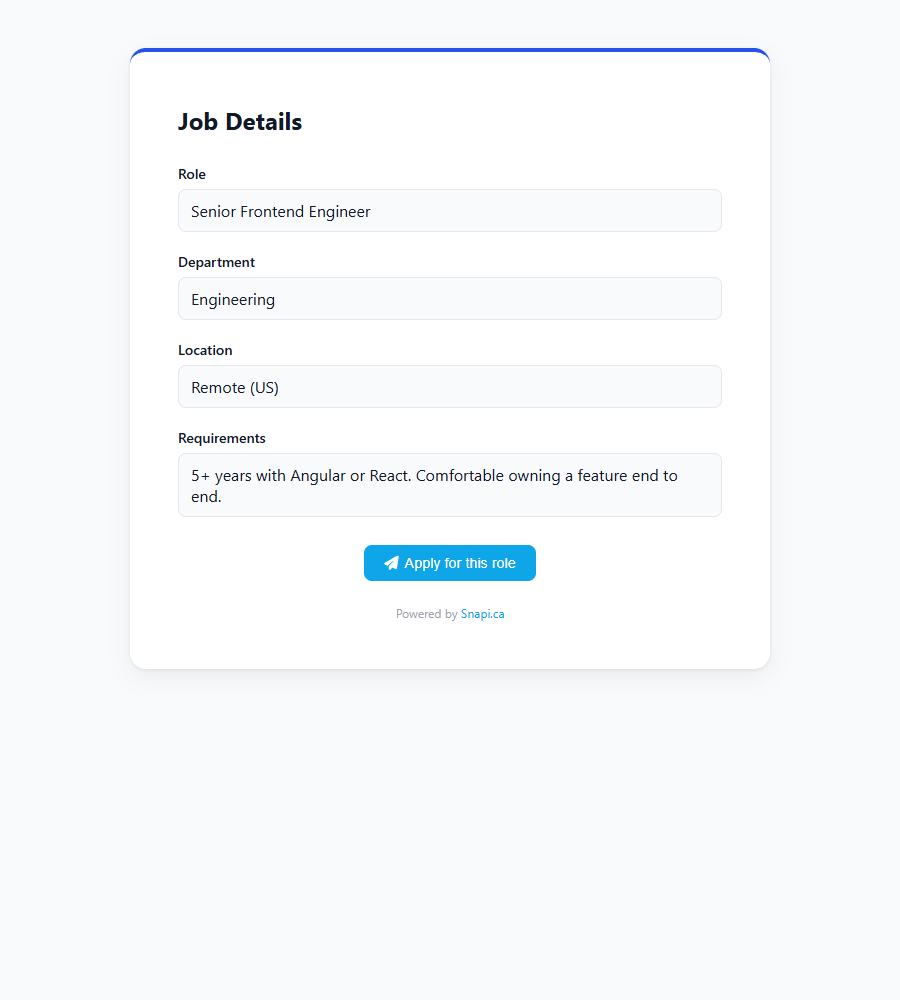
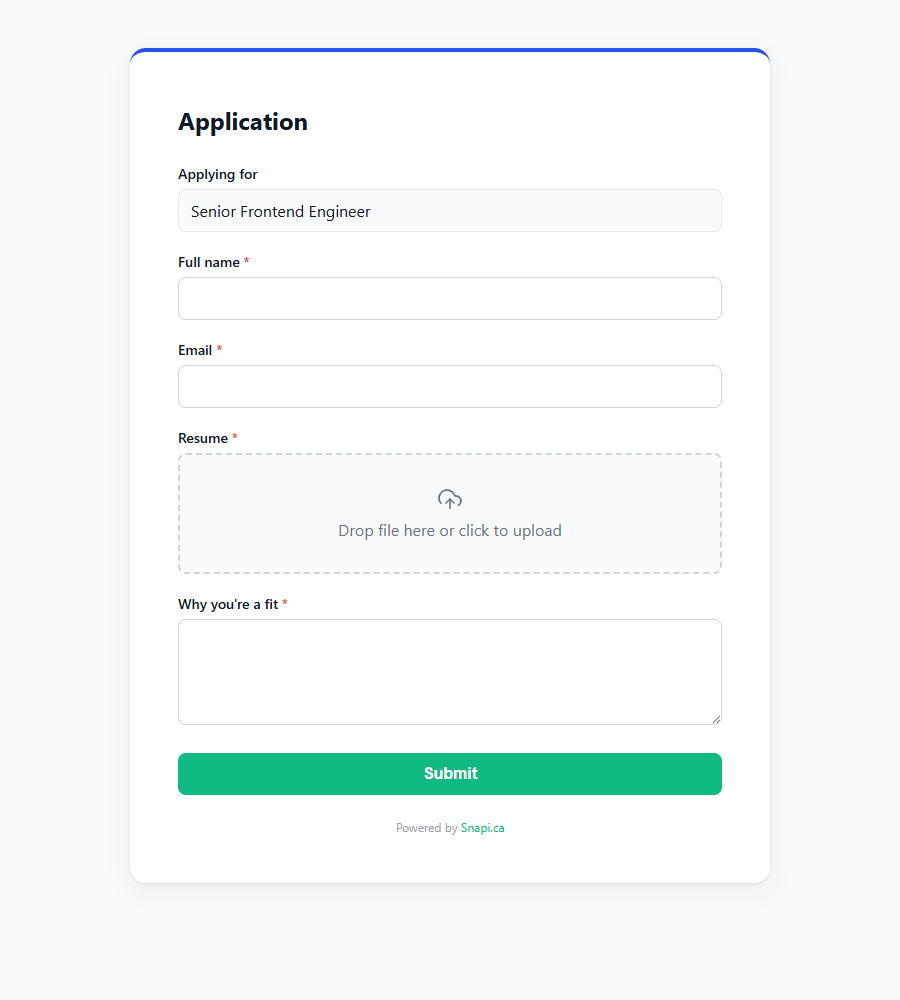
Three pages, in order: the list of open roles, one role's full detail, then the application form itself — pre-filled with which job they're applying for.
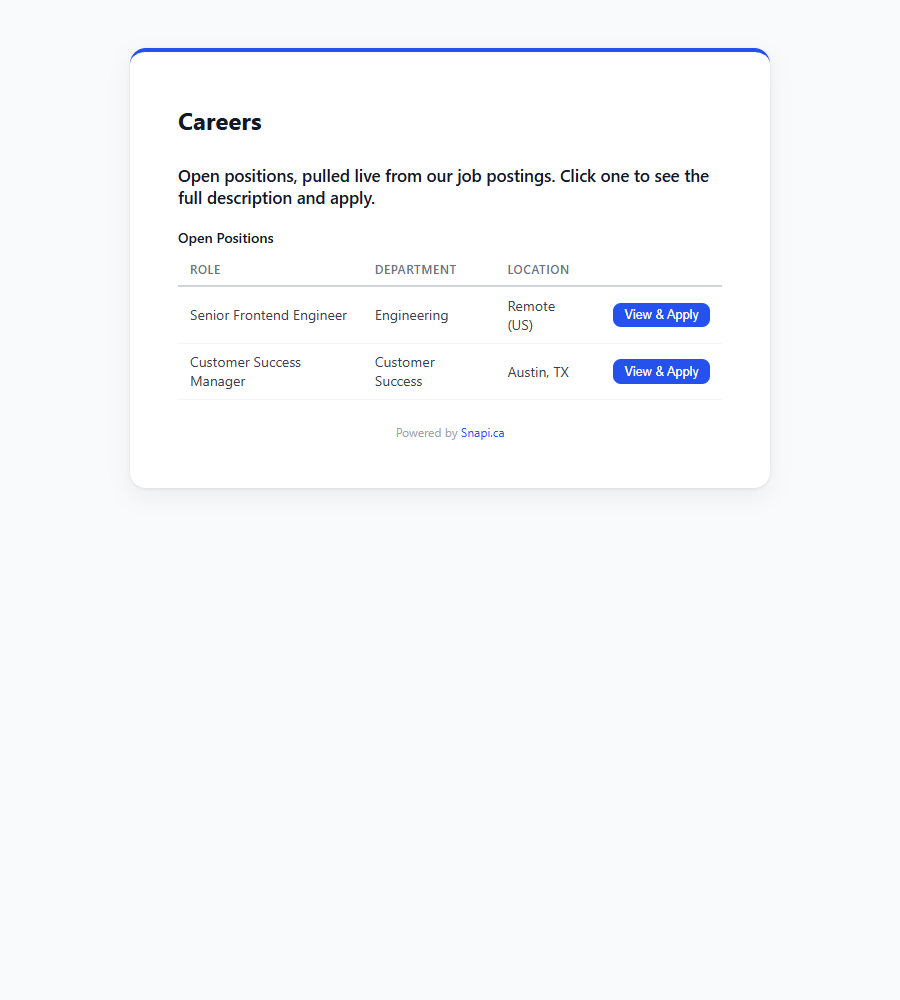
Public Careers Hub page listing two open positions with View & Apply buttons

Careers Hub

Public Job Detail page showing the Senior Frontend Engineer role's full description

Job Detail

Public Application page with Applying for pre-filled as Senior Frontend Engineer

Application

What your team sees

Applicants never see this — it's internal-only. Every submission lands as a card on the Applicants board, starting in New. Drag a card through Shortlisted, Interview, or Rejected as you work the queue; each card carries the applicant's name and the auto-assigned application number.
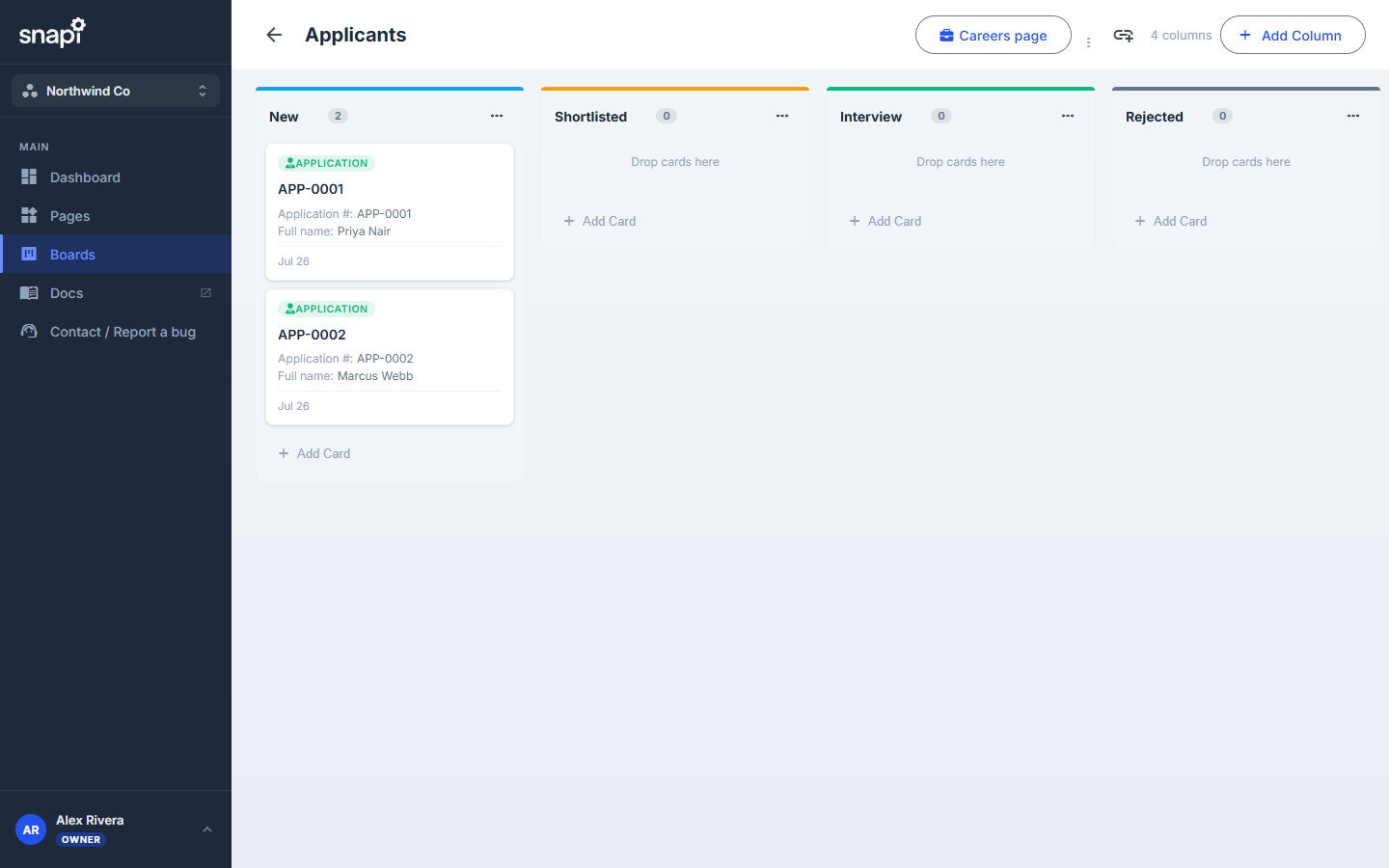
The internal Applicants kanban board with two application cards in the New column

The Applicants board — visible only to your internal users, never to the public.

Optional

The AI screening workflow

Fires when someone applies. Looks up the real job (by the id carried through from the detail page), asks an LLM to compare the applicant against its actual requirements, and writes a suggested fit score onto the application — it never auto-rejects anyone. Bring your own OpenAI key. This is the only piece of the template that touches n8n — listing and displaying jobs is handled entirely by Snapi's own webhooks.

n8n workflow (optional)

Board columns

New Shortlisted Interview Rejected

Make it yours

Everything is editable after install — add fields to Job Posting (salary range, remote/onsite), add columns to the table, restyle the detail page. It's yours to reshape, not a locked template.

Prefer your own careers page instead of the built-in hub?

The Careers Hub is a complete public page on its own, but if you'd rather list openings on your existing site, link straight to a job's Detail page — same mechanism, your own design around it.

A job's Detail page URL looks like app.snapi.ca/forms/your-org/job-detail?job_id=<record id> — grab the id from the Job Posting record and drop it into a plain <a> tag on your own site.

More templates

Job Application Screening Lead Intake & Qualification Client Intake Event Registration Contact to CRM Vendor Onboarding

All templates →

Install job listings & AI screening.

Install in Snapi